Browse and select your photos
- Choose your phone in “My devices” and open “Photos & videos”. Let Wasl scan the available files.
- Use search, dates and available albums or folders to narrow the results. Increase thumbnail size for easier browsing.
- Double-click a photo to preview it. A missing preview does not necessarily mean a damaged file; Windows may need HEIF/HEVC codecs.
- To copy your library, choose all-library or all-results selection, depending on the page. “Select page” covers only the current page.
- After selecting all, clear individual items you do not want. Choose a destination on your computer and export the selection.
- Wait for the results report and open sample files from the destination. Copying to the computer does not delete originals from the phone.
Photos stored only in iCloud may be unavailable over USB. Follow the iCloud guide.
File list and internal preview
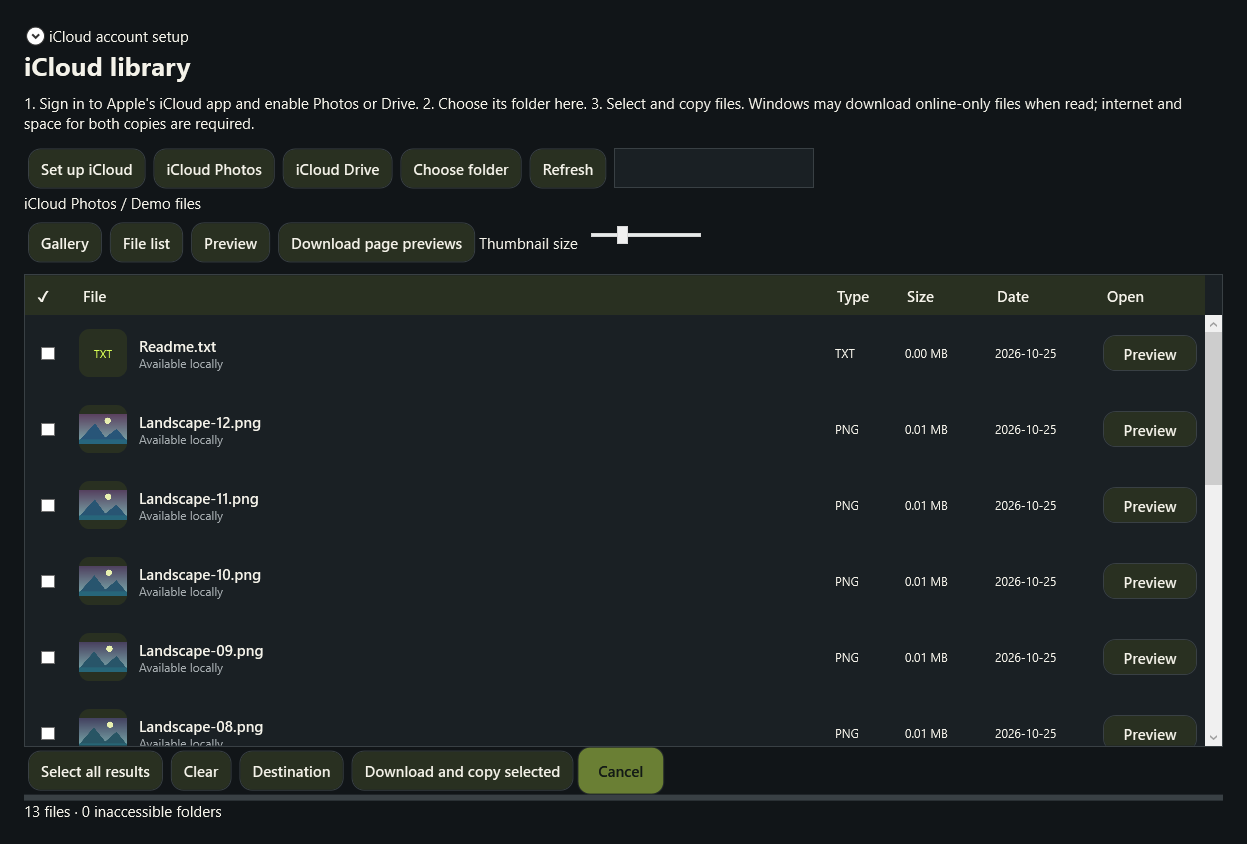
- In iCloud, choose “File list” to see names, sizes, dates and availability. USB files have a separate “Phone files” page.
- In the iCloud list, click the row’s “Preview” button, double-click the file, or select it and press Enter.
- Supported images, video and text have built-in previews. Other formats show file details; export them to open in a suitable app.
- Select files, choose an independent destination, then export or choose “Download and copy selected”.
Transfer from Android
- Connect the phone in File transfer mode and choose it in “My devices”.
- Browse the files Android exposes over USB. Private app data and online-only cloud files may not be available.
- Select files, choose a destination and export. Advanced Android tools are separate and may require additional setup described in the app.
Receive over Wi-Fi
- Connect the phone and computer to the same network. In Wasl, open “Wi-Fi transfer” and enable receiving.
- Open LocalSend on the phone, select files and choose the computer whose name starts with Wasl.
- Enter Wasl’s pairing code and approve the incoming request on the computer. Share the code only with your trusted device.
- If discovery fails, check the app’s firewall permission and whether the network isolates devices. Do not disable the whole firewall.
This flow needs a compatible sending app such as LocalSend; merely joining Wi-Fi does not send files.
Choose the right type of backup
A USB file backup copies accessible files, not every system setting or private app database. An iPhone device backup is different from photo export and may require encryption, a password and extra space. Keep the originals until you verify the contents and usability of the resulting backup.