Connect iCloud correctly
- Open Apple’s iCloud for Windows app and sign in to the Apple Account holding your files. Complete verification inside Apple’s app.
- Enable iCloud Photos and/or iCloud Drive. Wait for files to start appearing in File Explorer. Signing in at icloud.com alone does not connect files to Wasl.
- In Wasl, open iCloud, then “iCloud Photos” or “iCloud Drive”. Refresh after synchronization begins.
- If you changed the iCloud folder location, use “Choose folder” and select the real synchronized folder. Do not create an empty folder named iCloud.
Wasl does not request your Apple password. Signing in does not mean the entire library finishes syncing immediately.
Preview, select and export
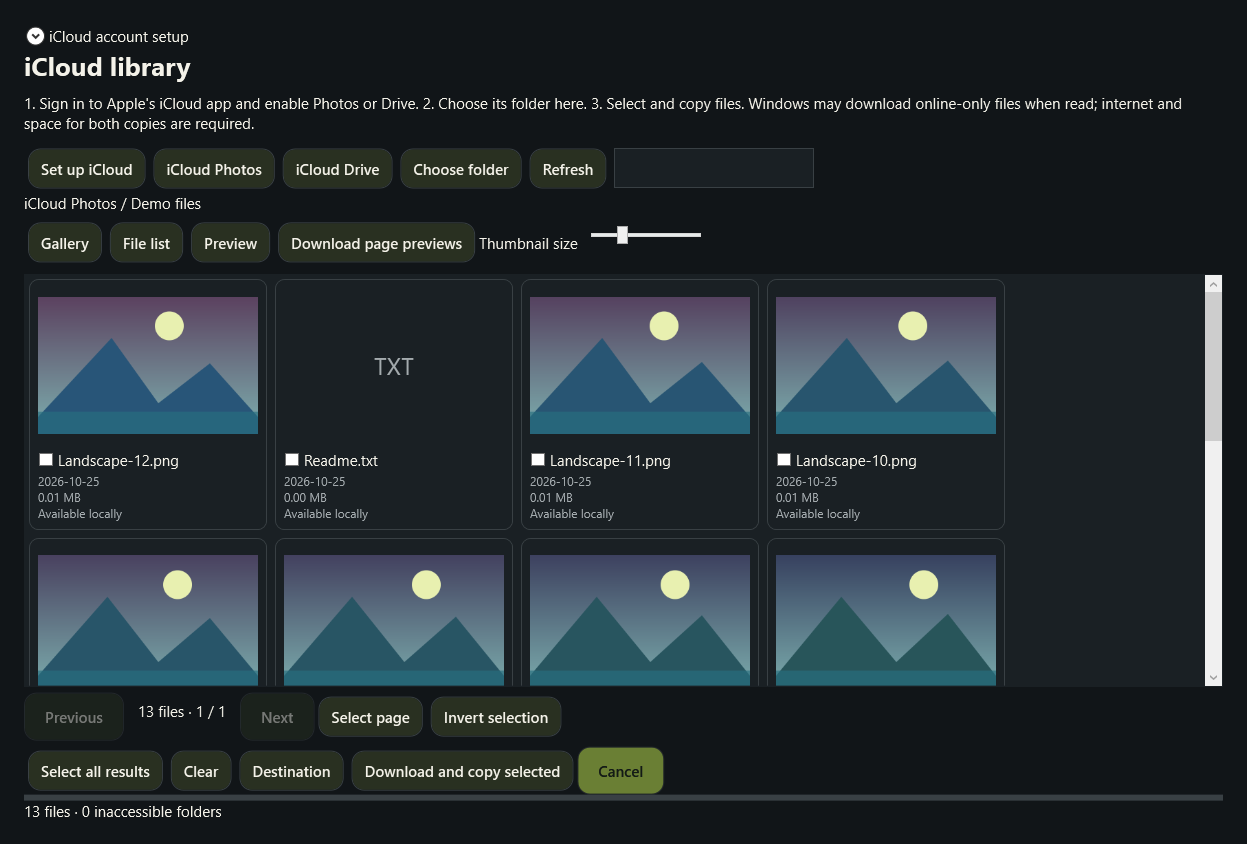
- Choose “Gallery”, adjust thumbnail size and use search to find files.
- The gallery displays pages of 48 items. This is a display page size, not an export or selection limit.
- If a file shows a type badge instead of a thumbnail, choose “Download page previews”. This may download the displayed files and needs internet and storage.
- Double-click to open the internal viewer. Use Previous and Next and select files in the preview.
- “Select all results” covers matching files across all pages. Clear individual items you do not want.
- Choose an independent destination outside your iCloud folder and click “Download and copy selected”. Review the results report.

Send photos to iPhone by cable

- Open “Send to iPhone”, add computer photos and videos and select the required files.
- Choose USB and prepare the files for USB synchronization. Wasl keeps the originals and creates a separate staging folder.
- Open Apple Devices, select the iPhone and open Photos. Choose the prepared folder and include videos if required.
- Review Apple’s sync settings and warnings before applying. Stop and review any warning about replacing previously synchronized content.
- After Apple finishes syncing, check the iPhone. Successful staging in Wasl alone does not confirm arrival in the phone’s photo library.
With iCloud Photos enabled, Apple Devices may not offer cable photo synchronization. Use iCloud instead of automatically changing your existing settings.
Send through iCloud
- Use the same Apple Account on iCloud for Windows and the iPhone, with photo synchronization enabled.
- In “Send to iPhone”, choose iCloud, select the actual synchronized Photos folder and confirm the folder and account.
- Add and select files, then copy them to the iCloud folder.
- Let Apple’s app upload them and verify their appearance on the iPhone. Local copy completion does not confirm cloud upload or phone receipt.
Internet and sufficient cloud storage are required. Sending photos already in the library can create duplicates. Wasl does not download full iCloud device backups.