Projects and teams
Add projects and sites, and review employee attendance and working hours from the administration dashboard.
Windows workspace for construction teams
Run projects, teams and expenses from one workspace.
Review attendance and expenses, then file documents by project. The Windows app connects to a central server and shows each user the projects and tools they have permission to access.
Windows x64 · v0.6.9 · 121 MB · EXE
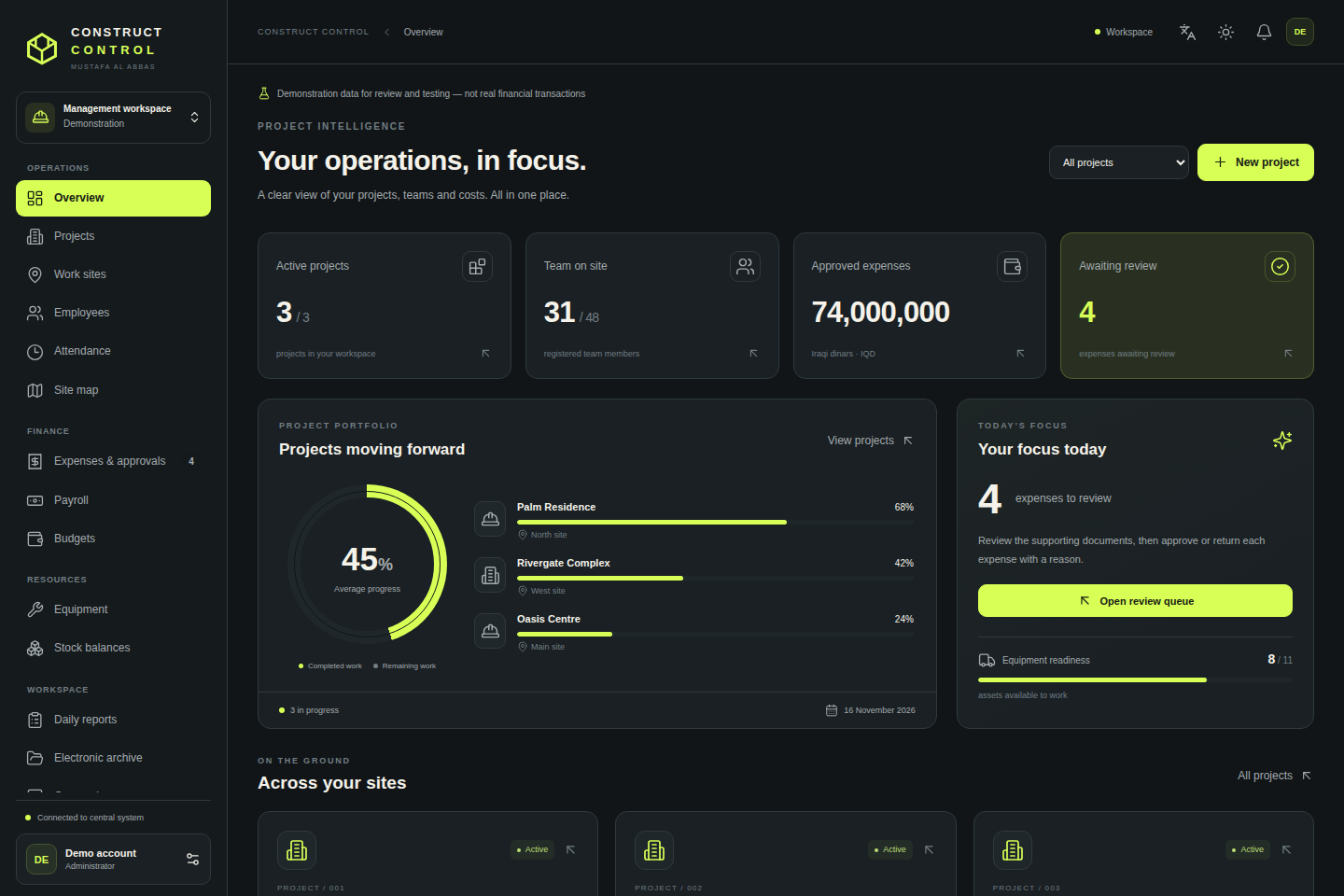
Screenshots from the Windows app with sample data. Select an image to open it at full size.
Add projects and sites, and review employee attendance and working hours from the administration dashboard.
View receipt photos and attachments in the app, then review expenses according to your permissions.
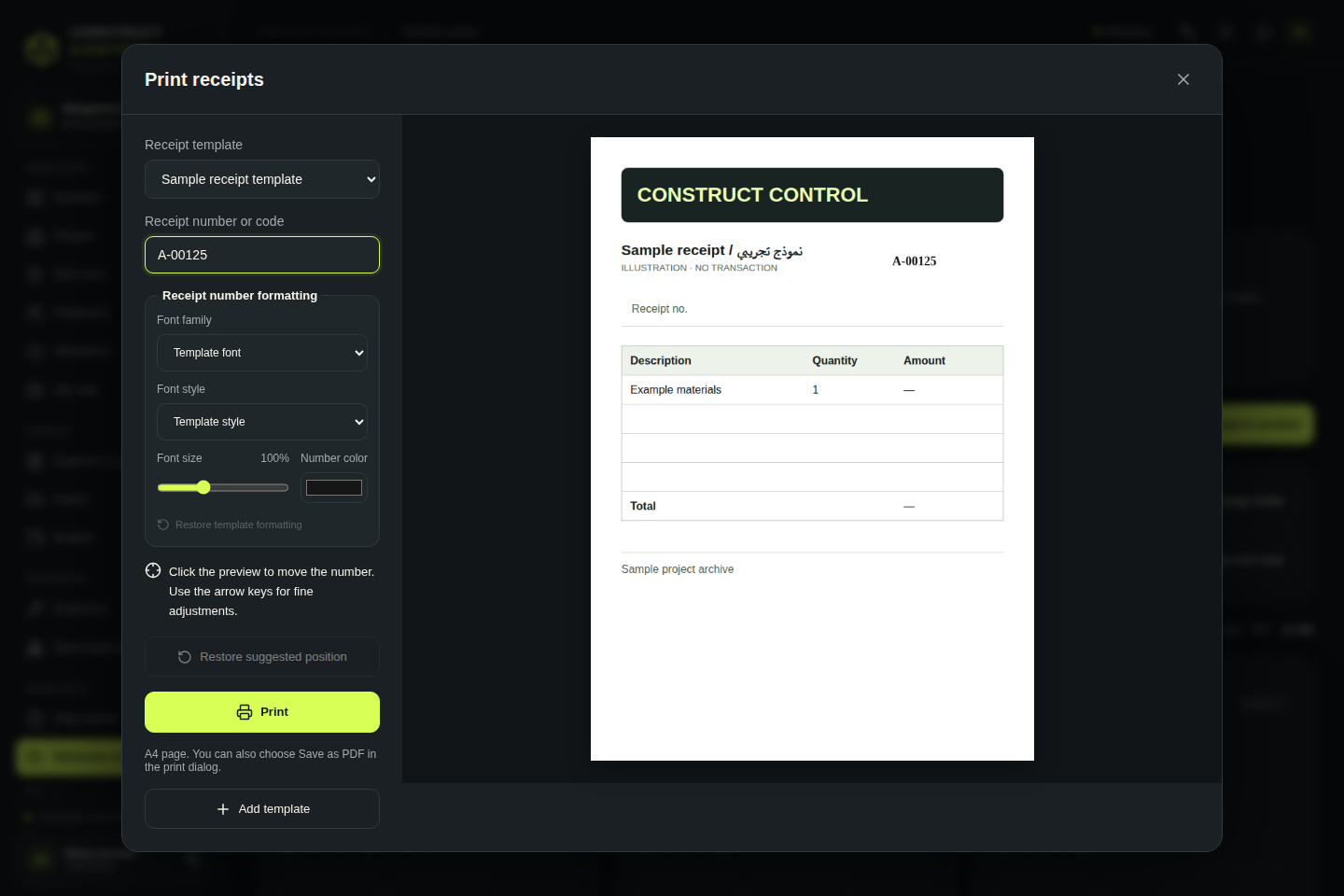
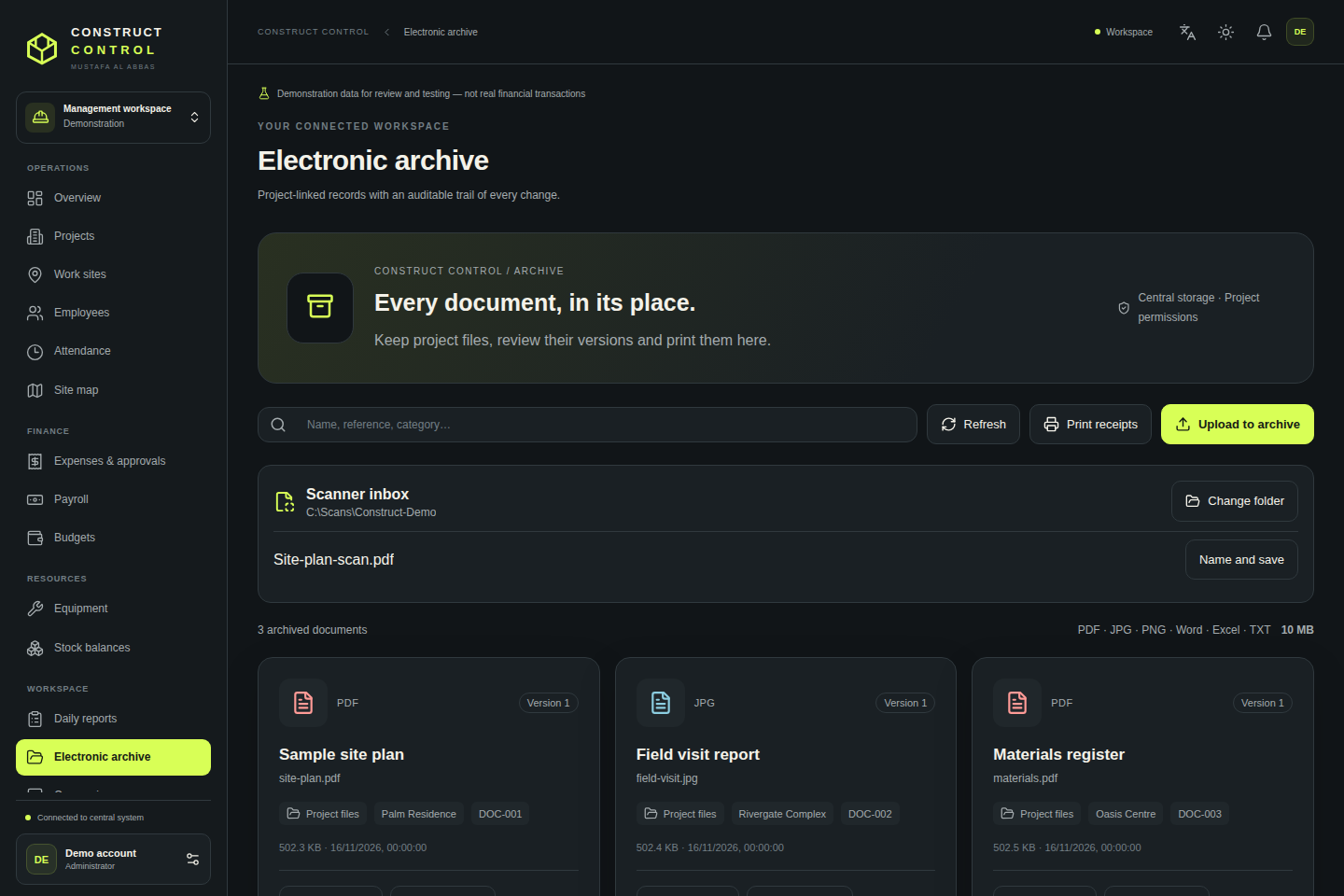
Save, preview and print project documents, and export reports from the administration app.
Download the installer on a 64-bit Windows computer and open CONSTRUCT CONTROL once setup finishes.
Ask your administrator for an account. Enter your username and password, or use a temporary access code issued by the administrator.
Select a project from the dashboard. Available tools depend on your role. Administrators can assign projects and manage accounts.
In the document archive, open Print receipts. Pick a template, enter a number, then set its position, font, size and color. Print on A4 or save as PDF.
Upload a JPG or PNG, name the template and set the number position. Authorized users can then select it from the print list.
Choose the scanner output folder once in Scanner inbox. PDF, JPG and PNG files appear when ready. Open a file, adjust its name and save it to the project archive.
Yes. Your administrator creates your account and assigns its permissions. A temporary access code expires after 15 minutes and can be used once.
When you save, the app stores archive documents and project records on the central server. You need a connection to sign in and sync your work.
The management dashboard runs inside the Windows app. This page explains how to use it and provides the installer.
Mustafa Al-Abbas signed the current installer with a development certificate. Windows may show a warning because the certificate is not publicly trusted. Contact support if you have questions.